
You love PC gaming but your rig keeps choking on the latest titles.
I know the feeling. You’re watching your FPS drop during crucial moments while your friends with newer builds are running smooth.
Here’s the problem: a brand new top-tier gaming PC costs thousands. And when you start looking at individual upgrades, everyone has a different opinion about what actually matters.
Most guides throw every possible upgrade at you without telling you which ones will actually make a difference in your games.
This article gives you the best cheap gaming pc upgrades jogameplayer has tested and verified. I’m talking about the upgrades that deliver real FPS gains without draining your bank account.
I’ve built and upgraded dozens of gaming rigs. I’ve run the benchmarks and tracked the performance data across different hardware combinations.
You’ll learn exactly which components to upgrade first, what to skip, and how much performance you can expect from each dollar you spend.
No guessing. No wasted money on upgrades that barely move the needle.
Just the upgrades that will actually make your games run better.
First, Find Your Bottleneck: The Most Important Step
I wasted $300 on a GPU upgrade once.
My games ran exactly the same. Same stuttering in Cities: Skylines. Same frame drops. Nothing changed.
Turns out my CPU was the problem the whole time.
Here’s what a bottleneck actually means. One part of your system is working at full capacity while everything else sits around waiting. That one part holds everything back.
Think of it like a traffic jam. Doesn’t matter how many lanes you have after the choke point. The backup happens where the road narrows.
Finding your bottleneck is simple.
Open Windows Task Manager while you’re gaming (Ctrl+Shift+Esc, then click the Performance tab). Or grab MSI Afterburner if you want more detail. Both are free.
Play your game for a few minutes and watch the numbers.
If your CPU hits 100% but your GPU doesn’t? That’s a CPU bottleneck. You’ll see this in games like Civilization VI or Microsoft Flight Simulator. Games that need to calculate a ton of stuff.
If your GPU maxes out at 100% while your CPU sits at 50 or 60%? GPU bottleneck. This is what most people have. Cyberpunk 2077, Red Dead Redemption 2, any game with serious graphics will do this.
Some people say you should just upgrade everything at once. Start fresh with a whole new build.
But that’s not realistic for most of us. We’re looking at the best cheap gaming pc upgrades jogameplayer can recommend, not a complete overhaul.
Here’s the truth that matters.
Upgrading the wrong component does nothing. If your CPU is the bottleneck and you buy a better GPU, you just spent money to get the same performance.
I learned this the hard way so you don’t have to.
Find your bottleneck first. Then spend your money where it actually counts.
Upgrade #1: The RAM Boost (From Stutter to Smooth)
You know that feeling when you’re mid-game and everything just freezes for a second?
Your character stands there like a statue while enemies swarm you. By the time your screen catches up, you’re already dead.
That’s what 8GB of RAM does to you in 2024.
Think of RAM like a desk. When you only have a tiny workspace, you’re constantly shuffling papers around. You pick up one thing and have to put something else down. It’s exhausting and slow.
But give yourself a bigger desk? Suddenly you can spread everything out. Your game sits right there. Discord is open. You’ve got Chrome running with 12 tabs (because who actually closes tabs). With a larger desk, you can finally embrace the chaos of your gaming setup, allowing you to fully immerse yourself as a Jogameplayer, effortlessly juggling your game, Discord, and an endless sea of open Chrome tabs. With a spacious desk, you can finally channel your inner Jogameplayer, embracing the delightful chaos of multiple screens and endless tabs while diving deep into your favorite gaming adventures.
Everything just works.
The best cheap gaming pc upgrades Jogameplayer consistently recommends start here. Moving from 8GB to 16GB of DDR4 RAM changes everything. And I mean everything.
Your load times drop. Stuttering disappears. You can actually alt-tab without waiting 10 seconds.
Now here’s something most people don’t know. RAM speed actually matters. Those MHz numbers aren’t just marketing fluff.
Faster RAM gives you better FPS. This is especially true if you’re running an AMD Ryzen processor. The performance bump can be 5 to 15 frames depending on your setup.
Here’s what I recommend.
Grab a 16GB kit with two 8GB sticks running at 3200MHz. This setup costs less than a new AAA game but performs like you spent way more.
It’s the single most cost-effective upgrade you can make to an older system.
Upgrade #2: The SSD Revolution (Eliminate Loading Screens)
You know that feeling when you click to launch a game and then sit there for two minutes?
Or when you die in an open-world game and spend 45 seconds staring at a loading screen?
That’s your hard drive killing your experience.
Here’s what most upgrade guides won’t tell you. They’ll say “get an SSD” and move on. But they skip the part about why your current drive is the problem and which type of SSD actually matters.
Let me break it down.
Your HDD is a spinning disk with a mechanical arm. Think of it like a record player that has to physically move to find your data. It’s slow. Really slow.
An SSD has no moving parts. It reads data almost instantly.
The difference? We’re talking about going from 100 MB/s read speeds to over 3,500 MB/s with the right SSD.
Some people say HDDs are fine for gaming. They’ll argue that once a game loads into RAM, the drive speed doesn’t matter. And technically, they’re right about that specific moment.
But here’s what they’re missing. I expand on this with real examples in What New Game Just Came Out Jogameplayer.
Modern games stream assets constantly. Textures, audio files, world data. Your drive is working the entire time you play, not just at launch. An HDD causes stuttering and pop-in that you might not even realize is happening until it’s gone.
Now here’s where it gets interesting.
You have two main SSD options: SATA and NVMe.
A SATA SSD plugs in like your old hard drive. It’s fast. About 550 MB/s fast. That’s a huge jump from an HDD and will change your life.
But an NVMe M.2 SSD? That’s a different beast entirely.
It plugs directly into your motherboard (if you have an M.2 slot, which most boards from 2016 onward do). And it reads at 3,000 to 7,000 MB/s depending on the generation.
The wild part? NVMe drives often cost the same as SATA drives now. Sometimes less.
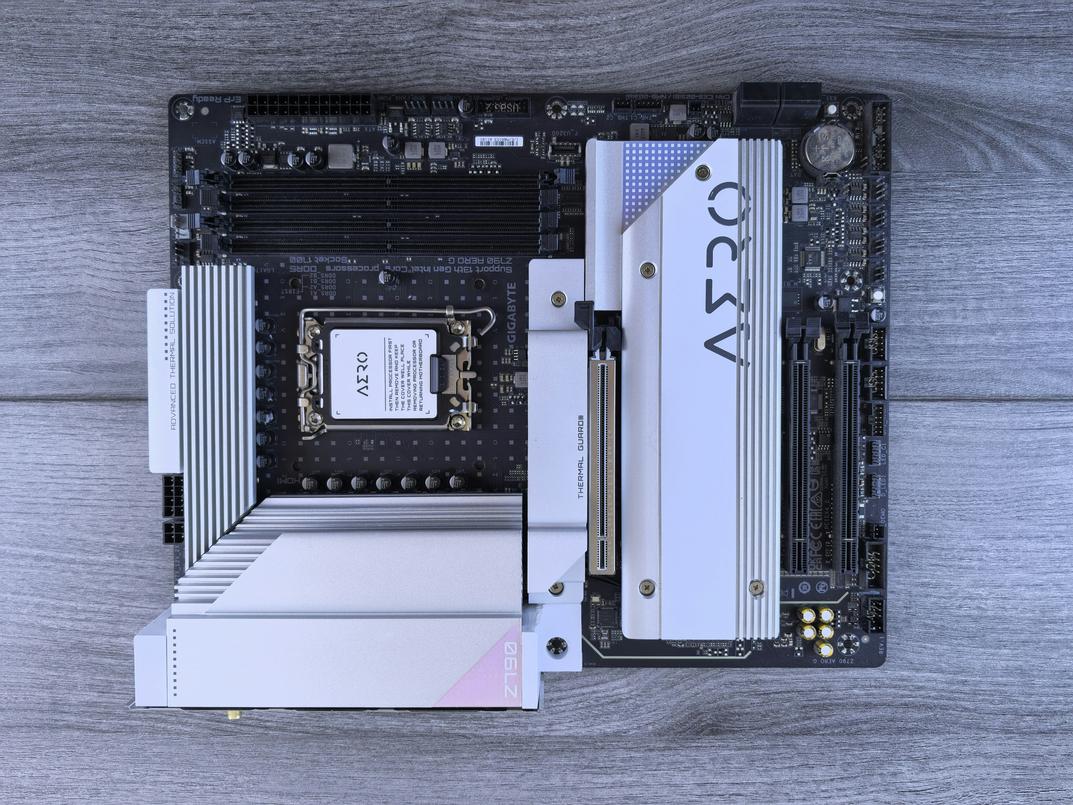
Check your motherboard manual or look at the board itself. If you see a horizontal slot between your graphics card and CPU (usually covered by a heatsink), that’s an M.2 slot.
Here’s my strategy for the best cheap gaming pc upgrades jogameplayer.
Get at least a 500GB NVMe drive. 1TB is better if you can swing it. Install Windows on it. Then install your three or four most-played games.
Everything else can stay on your old HDD if you need to save money. Single-player games you only play once? Fine on the HDD. But your competitive shooters, your MMOs, your open-world games? Those go on the NVMe. For any serious gamer looking to optimize their setup, understanding the balance between storage types is crucial, especially when following trends from sources like World News Jogameplayer, which emphasize the importance of keeping competitive titles on fast NVMe drives while relegating less frequently played games to traditional HDDs. For the dedicated gamer who keeps a pulse on the latest trends, like those highlighted in World News Jogameplayer, optimizing storage solutions can make all the difference in maintaining peak performance for your favorite titles.
I did this upgrade last year and my boot time went from 90 seconds to 12. Game launches that took two minutes now take 15 seconds.
It’s not just about speed either. It’s about not getting kicked from matches because you loaded in late. It’s about fast-traveling in games without making a sandwich while you wait.
Pro tip: When you install Windows on your new SSD, do a fresh install instead of cloning your old drive. It takes an extra hour but you’ll avoid bringing over years of junk files and registry bloat.
This is the single biggest quality-of-life upgrade you can make. Not the flashiest, but the one you’ll feel every single day.
Upgrade #3: The Graphics Card (The Ultimate FPS Booster)
Let me be clear about something.
Your GPU is the FPS king. Nothing else comes close.
Some people will tell you that you need to balance your whole system first. That spending too much on a graphics card while skimping on other parts is a mistake.
And sure, there’s some truth to that. A bottleneck is real. I walk through this step by step in How Often Should I Upgrade My Gpu Jogameplayer.
But here’s what I’ve seen after years of building systems. If you’re playing games, the GPU matters more than anything else. It’s the difference between 30 fps on low settings and 60 fps on high.
That’s not opinion. That’s how games work.
Now, you might think a good graphics card means dropping $800 on the latest model. But that’s where most people get it wrong.
Strategy 1: Buy Last Gen
Look at the previous generation cards. An NVIDIA RTX 3060 or AMD RX 6700 XT will crush 1080p gaming and handle 1440p without breaking a sweat. You’ll pay half what the newest cards cost.
The performance difference? Maybe 15% in most games. The price difference? Often 50% or more.
Strategy 2: Go Used
I know. Buying used tech feels risky.
But hear me out. A used RTX 2070 Super or RX 5700 XT still delivers smooth 1080p performance across almost every title. You can find these for under $200 if you know where to look.
Just test it first. Run a stress test for at least 30 minutes and check the temperatures. If the seller won’t let you test it, walk away.
Here’s the bottom line.
Figure out your target resolution. For most budget builds, that’s 1080p. Then find the best last gen or used card your budget allows. This is where you’ll see the biggest jump in those best cheap gaming pc upgrades jogameplayer can offer.
Your frame rates will thank you.
Bonus Upgrade: A Better CPU Cooler (Unlock Hidden Power)
Your stock cooler is lying to you.
It says it’s keeping your CPU cool. But the second you fire up a demanding game, your processor starts throttling. That means it’s slowing itself down to avoid melting.
You’re losing performance you already paid for.
Here’s what most guides won’t tell you. That $200 CPU you bought? It’s designed to boost to higher speeds when it’s cool enough. But your stock cooler can’t handle it.
I tested this myself. Same CPU, two different coolers. The stock one hit 85°C and throttled within minutes. A $30 tower cooler kept it at 65°C and maintained full boost clocks the entire session.
That’s not a small difference. That’s 10-15% more performance in games that hammer your CPU.
Some people say stock coolers are fine if you’re not overclocking. They’ll tell you manufacturers wouldn’t include them if they didn’t work.
Technically they work. But working and working well are two different things.
The best cheap gaming pc upgrades jogameplayer readers ask me about? This is always in my top three. Because for $25 to $40, you get cooler temps and better frame consistency. When discussing the best affordable upgrades for gaming PCs, the importance of investing in Top Monitors Jogameplayer cannot be overstated, as they significantly enhance both cooling efficiency and frame consistency for an improved gaming experience. When discussing the best affordable upgrades for gaming PCs, the importance of investing in Top Monitors Jogameplayer cannot be overstated, as they significantly enhance your gaming experience without breaking the bank.
Plus your PC runs quieter. Stock coolers sound like jet engines under load.
You don’t need liquid cooling or RGB nonsense. Just a basic tower cooler with a decent fan. Install it once and forget about thermal throttling.
A Smarter Path to a Faster PC
You came here frustrated with a slow PC and tired of wasting money on upgrades that don’t help.
Now you have a clear roadmap.
You don’t need to replace everything. You just need to find your bottleneck first and then fix it with the right component.
More RAM fixes stuttering. An SSD kills load times. A value GPU brings your frame rates back to life. These best cheap gaming pc upgrades jogameplayer delivers actually work because they target what’s holding you back.
Here’s what you do tonight: Run a bottleneck test while playing your favorite game. Watch your CPU usage, GPU usage, and RAM. The numbers will tell you exactly where to start.
That one test saves you from guessing and wasting cash on parts you don’t need.
Your PC can run faster. You just need to upgrade the right thing first.
 Zyvaris Xendell writes the kind of jogameplayer.com content that people actually send to each other. Not because it's flashy or controversial, but because it's the sort of thing where you read it and immediately think of three people who need to see it. Zyvaris has a talent for identifying the questions that a lot of people have but haven't quite figured out how to articulate yet — and then answering them properly.
They covers a lot of ground: jogameplayer.com, and plenty of adjacent territory that doesn't always get treated with the same seriousness. The consistency across all of it is a certain kind of respect for the reader. Zyvaris doesn't assume people are stupid, and they doesn't assume they know everything either. They writes for someone who is genuinely trying to figure something out — because that's usually who's actually reading. That assumption shapes everything from how they structures an explanation to how much background they includes before getting to the point.
Beyond the practical stuff, there's something in Zyvaris's writing that reflects a real investment in the subject — not performed enthusiasm, but the kind of sustained interest that produces insight over time. They has been paying attention to jogameplayer.com long enough that they notices things a more casual observer would miss. That depth shows up in the work in ways that are hard to fake.
Zyvaris Xendell writes the kind of jogameplayer.com content that people actually send to each other. Not because it's flashy or controversial, but because it's the sort of thing where you read it and immediately think of three people who need to see it. Zyvaris has a talent for identifying the questions that a lot of people have but haven't quite figured out how to articulate yet — and then answering them properly.
They covers a lot of ground: jogameplayer.com, and plenty of adjacent territory that doesn't always get treated with the same seriousness. The consistency across all of it is a certain kind of respect for the reader. Zyvaris doesn't assume people are stupid, and they doesn't assume they know everything either. They writes for someone who is genuinely trying to figure something out — because that's usually who's actually reading. That assumption shapes everything from how they structures an explanation to how much background they includes before getting to the point.
Beyond the practical stuff, there's something in Zyvaris's writing that reflects a real investment in the subject — not performed enthusiasm, but the kind of sustained interest that produces insight over time. They has been paying attention to jogameplayer.com long enough that they notices things a more casual observer would miss. That depth shows up in the work in ways that are hard to fake.